Wednesday, 10 December 2025


Thursday, 27 November 2025
KX-NS1000 Incoming Call Group Setting

incoming call Distribution
you can see group Memberlist

UM Custome Service
you can see the group
8012 first
8006 second
Wednesday, 26 November 2025
Microsoft Activation Link and Redeem
office.com/setup ( after login create Microsoft Account with personal email tie to product key will after login will request to put Product Key)
then able to check redeem
account.microsoft.com/services
to check account
account.microsoft.com
or
myaccount.microsoft.com
portal.office.com (to download APP) after login with Microsoft Account)
for Windows 11 can try install new windows 11 to PC then Login Microsoft Account then put the Product Key
Office 365 command Installer and Use the Office offline installer
https://support.microsoft.com/en-us/office/use-the-office-offline-installer-f0a85fe7-118f-41cb-a791-d59cef96ad1c#OfficePlans=signinorgid&officeplans=signinorgid
Tuesday, 25 November 2025
How to Select Windows 11 Home or Pro Edition During Installation (ei.cfg)
https://www.makeuseof.com/windows-11-select-edition-during-install/

So, how do you force Windows 11 Setup to show the select edition screen during installation? You can achieve this by modifying the bootable media or the ISO image to include the EI.cfg file. Here we show you how to select the Pro edition while installing Windows 11.
Why Doesn’t Windows 11's Setup Display the Select Edition Screen?
Nowadays, Microsoft doesn’t publish different editions of the Windows OS on its server. Instead, the default multi-edition ISO file includes all the editions ( Home, Pro, Education, Enterprise).
During a clean install, Windows Setup looks for the traces of the previous installation including the OEM (Original Equipment Manufacturer) license tied to your computer’s motherboard to determine the correct edition of the operating system to install.
This is a convenient feature for many as you don’t need to activate your computer after installing Windows 11 manually. But this also means you don’t get to select the Windows 11 editions during a clean install.
To fix this problem, you can include a Windows Setup configuration file to force Windows Setup to display the select edition screen during installation. It is an optional setup configuration file that you can add to automate the edition selection and product key verification steps during Windows installation.
How to Force Windows Setup to Show the Windows 11 Editions During Clean Install

- First, you need to create a bootable Windows 11 USB drive. If you don’t have an ISO, you can download the Windows 11 ISO image from the Microsoft server.
-
Next, open a new Notepad file. To do this, press Win + R, type notepad, and click OK.

-
In the Notepad window, copy and paste the following lines:
[Channel] _Default [VL] 0 -
Press Ctrl + S to open the Save as dialog.
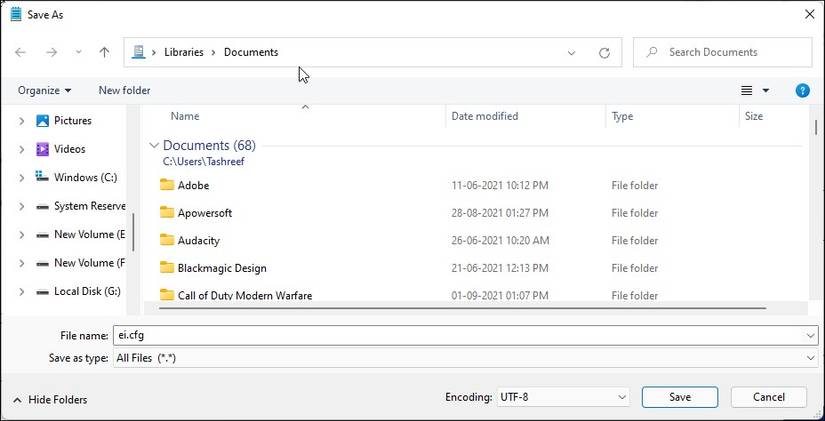
- Here, type the file name as ei.cfg. Next, click the drop-down for Save as type and select All Files.


- Click the Save button to save the file to your PC.
- Next, connect the bootable USB flash drive to your PC.
- Press Win + E to open File Explorer.
- In the left pane, click on This PC.
-
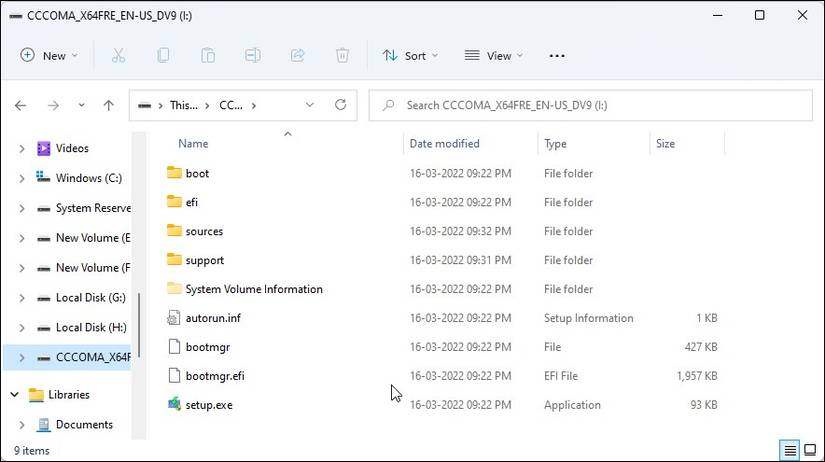
Next, double-click on the bootable USB flash drive to view its content.
-
Double-click on the Sources folder to open it.
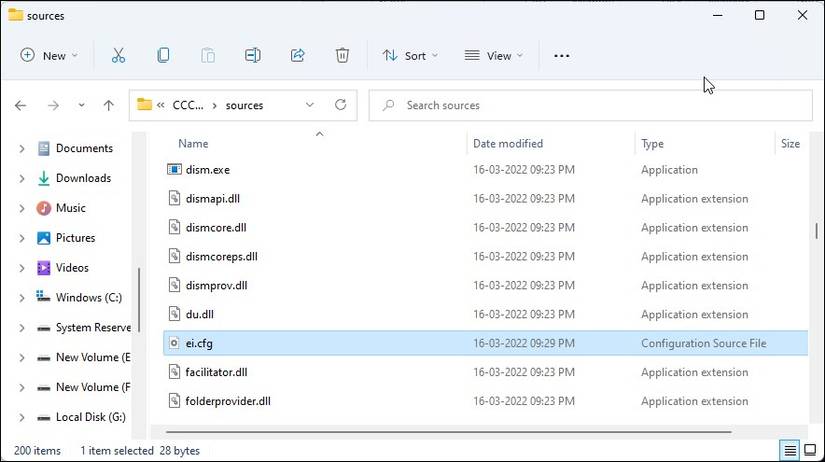
- Now, copy and paste the ei.cfg file into the Sources folder.


Tuesday, 11 November 2025
Acrobat Reader Print Out Garbled Characters
To fix garbled characters when printing from Acrobat Reader,
try printing the PDF as an image by selecting the "Print as Image" option in the advanced print settings.
Other solutions include updating Acrobat Reader, clearing the cache,
ensuring fonts are correctly embedded in the PDF, or printing again
without closing the file until the entire document is printed. Quick solutions
- Print as image: This is the most common quick fix.
- Go to
File > Print. - Click the
Advancedbutton. - Select
Print as Image. - Click
OKto exit the advanced settings, then clickPrint.
- Go to
- Print again: Try printing the file a second time without closing it. This can resolve issues caused by corrupt print jobs.
Other troubleshooting steps
- Update Acrobat Reader: Make sure you have the latest version installed, as a fix for this issue may be included in an update.
- Clear the cache: Go to
Edit > Preferences > Documentsand clear the cache to fix potential issues with stored data. - Check font settings: In
Preferences > Page Display, look for a "Rendering" section and see if the "Use local fonts" checkbox can be changed. - Check system settings: Ensure your system language is set correctly and not using symbols instead of letters, as this can affect how PDFs are displayed.
- Corrupt file: The PDF file itself may be corrupt. If possible, download a new copy or try printing a different PDF to see if the problem persists.
When to consider other options
- Different printer: If the problem occurs with only one PDF and one printer, the issue might be with that specific printer. Try printing to a different printer to see if that resolves the problem.
- Different browser: If you are printing a webpage, try using a different web browser like Chrome or Firefox to see if that helps.
Subscribe to:
Posts (Atom)